This guide details the process of compiling your source code, packaging it into a container image, and deploying it to the YNX1000 ACU.
¶ Prerequisites
Before continuing, ensure that the ACU SDK is installed prior to continuing with the following instructions. For the following guide, the location of the SDK installation is assumed to be at the following location:
~/.local/acu_sdk
Additionally, the location of the SDK scripts are assumed to be at the following location:
/usr/acu_sdk/scripts
If this directory is included in the system $PATH, the path listing may be dropped when calling any SDK scripts. If any of these paths differ in your environment please replace the examples with your local directories.
¶ 1. Build the Application Binary
Once your code is ready in the src directory, you must compile it using the ACU SDK toolchain.
- Open terminal:
Open a new terminal session to theProjectApplicationsfolder of your project directory.
cd ~/my_workspace/<ProjectName>/ProjectApplications
- Activate the SDK:
Ensure your terminal environment is initialized.
source ~/.local/acu_sdk/environment-setup-armv8a-wrs-linux
- Run CMake:
Create a build directory and generate the makefiles.
mkdir build && cd build
cmake ..
- Compile:
Run the make command to generate the executable binary.
make
This generates an ARM-compatible binary file in your build folder.
¶ 2. Create the Application Image
After generating the binary, you must package it with the Project.json file into a Docker-based image format (.tar) that the ACU can execute.
- Navigate to Project root:
Open a terminal session to the root of your project.
cd ~/my_workspace/<ProjectName>
- Activate ARM Emulation:
Execute the following docker command to enable ARM emulation within docker, if your environment is nativex86:
docker run --privileged --rm tonistiigi/binfmt --install all
Note:
The above command will need to be ran each time docker engine is rebooted.
- Prepare the Package:
Use theacu_build_imgscript provided in the SDK.
/usr/acu_sdk/scripts/acu_build_img -i <ProjectName> -t <Version>
-i: Specifies the docker image name-t: Specifies the tag (equivalent to version number of the docker image)
- Verify the Output:
The script will produce a file named<ProjectName>-<Version>.tarin your workspace.
Example:
cd ~/my_workspace/my_acu_app
/usr/acu_sdk/scripts/acu_build_img -i my-acu-app -t 1.0.0

# The following file will be generated
# my-acu-app-1.0.0.tar
¶ 3. Deploy to the ACU
There are two primary methods to install your application image onto the hardware.
¶ Method A: Using a Remote PC (Recommended)
- Connect:
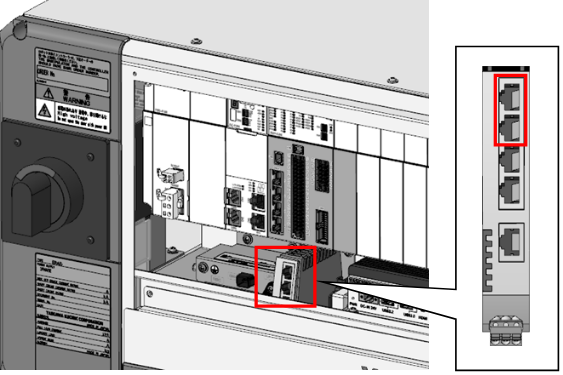
Plug your development PC into the YNX1000 internal network switch's LAN port via Ethernet.
- Access the Portal:
Open a web browser and navigate to the ACU’s IP address (default is typically192.168.1.253).
The web service can be located at the following address by default:
https://192.168.1.253:80
- Login:
The default login for admins/developers is:- User:
admin - Password:
padmin
- User:
- Upload:
- Navigate to the Application menu.
- Click Install.
- Select your
.tarimage file - Click Install.
- Confirm Auto-Start:
If you wish for the application the automatically boot upon completion of the install. Select the Skip Confirm option when prompted. Selecting Confirm will set the application to manual startup.
¶ Method B: Using the Robot Pendant & USB Flash Drive
-
Save:
Save the.tarimage file to the root directory of a FAT32-formatted USB drive. -
Connect:
Connect the drive to the a USB dock, connected to the Tablet Pendant.
A USB Dock is required to maintain connection to the robot controller while transfering the file. Else the file must be transfered to the Table Pendant prior to continuing with the steps below.
-
Install via Pendant:
Open the ACU Application Manager on the Tablet Pendant under the Utilities menu. -
Login:
The default login for admins/developers is:- User:
admin - Password:
padmin
- User:
-
Upload:
- Navigate to the Application menu.
- Click Install.
- Select your
.tarimage file - Click Install.
-
Confirm Auto-Start:
If you wish for the application the automatically boot upon completion of the install. Select the Skip Confirm option when prompted. Selecting Confirm will set the application to manual startup.
¶ 4. Start and Verify
Once installed, if the Skip Confirm option was previously selected the application will start automatically. If the application was set to manual startup, the startup procedure must be performed through the management interface.
-
Start the App:
From the Application List on the Web Server, click the Start button for your app. -
Monitor Status:
Ensure the status changes to Running. -
Check Logs:
If the application fails to start, click Log to view the output and troubleshoot any runtime errors.
| ⬅️ Previous | Next ➡️ | |
|---|---|---|
| Creating Your First ACU Application | What's NEXT |